
How I Ran a Full AI Platform on One VM
Nutanix Enterprise AI 2.8 installed on a stock Ubuntu VM, what the platform puts on the cluster, and a first inference endpoint with no GPU.

Nutanix Enterprise AI is a control plane for serving models, and most of what makes it work is Kubernetes plumbing: a gateway, an inference operator, an identity service, a few databases. The product’s own value sits above that stack, in the way it turns a model into a licensed, metered, authenticated endpoint. Studying it in production form means NKP, Nutanix Files, a cloud load balancer and GPU workers, and none of that is necessary to learn how the control plane behaves or to get a first answer out of a model. I wanted NAI 2.8 on one ordinary VM, repeatably, in an afternoon, and I wanted to know how far the study goes before a GPU becomes the missing piece. The installer I wrote for it is open source (nutanix-enterprise-ai-poc); this article is about what it installs and what that installation can do.
One VM, and what it must not be
The installer is an Ansible role that talks to one VM over SSH and to nothing else. It never calls a hypervisor API, so the VM can sit on AHV, VMware, KVM or a public cloud, and the same inventory file works in every case. The baseline below is the allocation I built and verified with, not a vendor figure; image layers, both databases, logs, the optional MinIO volume and the model weights share the one disk.
| Item | Baseline |
|---|---|
| OS | Ubuntu Server 24.04 LTS, x86-64 |
| CPU / RAM | 16 vCPU, 48 GiB, no overcommit |
| Disk | 150 GiB on the root filesystem |
| Network | Static IPv4, outbound internet, 80 and 443 free |
| Access | SSH key, passwordless sudo |
| State | Fresh: no Kubernetes or Docker installed |
Two inputs are easy to miss. RKE2 uses 10.42.0.0/16 for pods and 10.43.0.0/16 for services, both internal to the VM, and neither may overlap the VM’s LAN or any network reachable through a VPN. And the NAI container images are private: you need a Docker Hub account that Nutanix has authorized for them, which comes with an NAI entitlement, customer, partner or trial. Everything else the installer fetches is public, which also means the VM needs internet access and this is not an air-gap path.
The run itself is four steps: install Ansible on your computer, fill inventory.ini with the VM address, the SSH user and the Docker Hub credentials, run ./deploy.sh check for the preflight and ./deploy.sh install for the rest. Twenty to thirty minutes later the playbook prints the console URL, the bootstrap login and the cluster UID. The two NAI Helm charts are covered by the Nutanix EULA and are not in the repository; the preflight resolves them from the official Nutanix Helm index, the same one helm repo add consults, and verifies the SHA-256 digests the index publishes. The README and the runbook carry the phases, the pinned versions and the reason behind each pin.
What the platform puts on the cluster
Seen from kubectl, NAI 2.8 is a single-node RKE2 cluster on Kubernetes 1.35 with the prerequisites the installation guide lists, installed in the guide’s order: cert-manager, Envoy Gateway with the NAI extension-server configuration, the KServe CRDs and controllers in RawDeployment mode, CloudNativePG, LeaderWorkerSet, the OpenTelemetry operator, the Prometheus Operator CRDs with node-exporter, an RWO storage class on local-path and an RWX class on a local NFS export standing in for Nutanix Files, and an optional MinIO as the S3 service for importing models from a bucket the way you would from Nutanix Objects. The Envoy values file is the one piece that separates a gateway that looks healthy from one that serves an AI request: it points the extension server at the AI gateway controller, enables the EnvoyPatchPolicy and Backend APIs, and connects rate limiting to the Valkey Sentinel that nai-core creates.
Then come the two Nutanix charts, nai-operators and nai-core. In nai-system the control plane is nai-api, which owns the model catalog and the public API, nai-ui for the console, an IAM stack that speaks OIDC with oauth2-proxy in front of the console, nai-agent, the model controller that reconciles endpoints, the AI gateway controller that programs Envoy, a security scan manager and an OpenTelemetry collector. State lives in a CloudNativePG PostgreSQL cluster, in ClickHouse for inference metrics, and in Valkey for rate limiting. The inference plane is one KServe InferenceService per endpoint behind Envoy, which exposes the OpenAI-compatible API under /enterpriseai/v1 (chat/completions, completions, embeddings, models, rerank) protected by API keys created in the console.
All of it answers on one HTTPS address. HAProxy on the VM forwards TCP 80 and 443 to the Envoy Gateway service, resolved through cluster DNS so a recreated service is followed without any manual step, and Envoy terminates TLS. The default certificate comes from NAI’s own internal CA, requested by the installer with the VM IP in the Subject Alternative Name, so https://<VM_IP>/ works with no DNS record anywhere and one browser warning. A Let’s Encrypt mode and an enterprise-CA mode exist for anyone with a name to put on the certificate. First login is admin with the documented bootstrap password, followed by a forced password change and EULA acceptance; NAI 2.8 ships with a two-day trial, after which a license comes from the Nutanix portal against the cluster UID the installer printed.
A first endpoint with no GPU
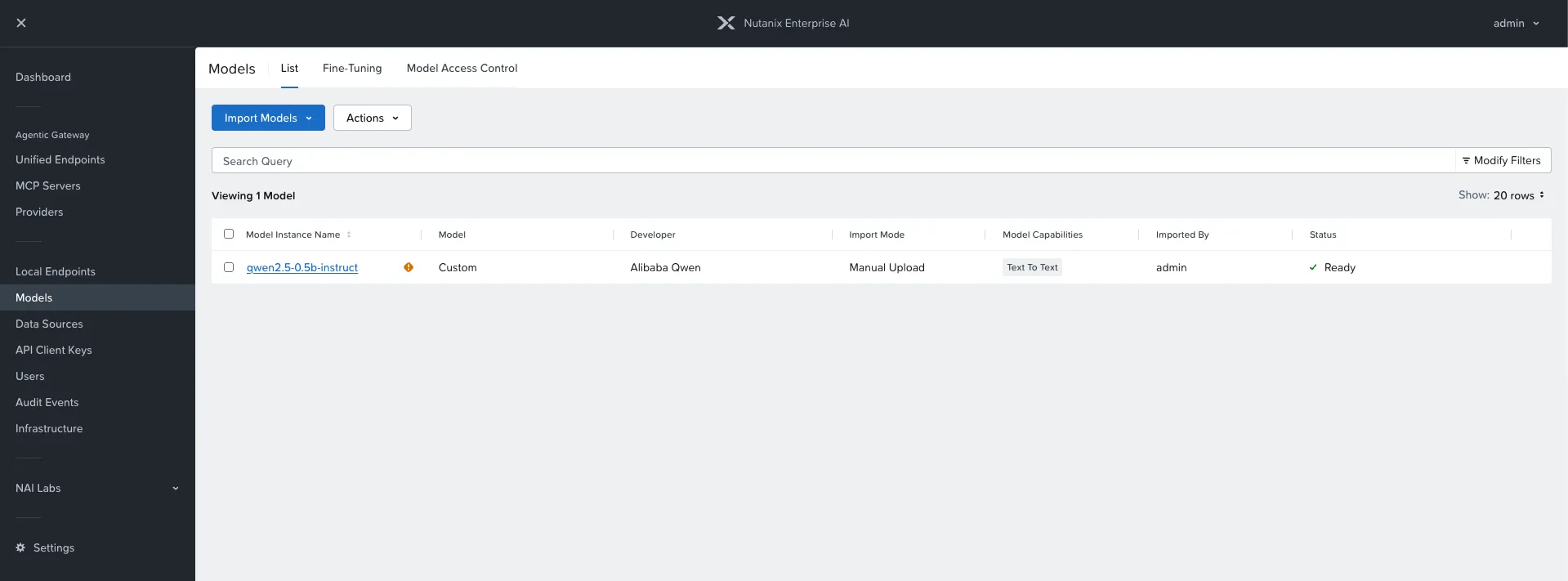
NAI supports CPU as an acceleration type for models that allow it, on the vLLM engine, with a 4096 token context. I wanted to see the whole path, catalog to answer, not just a green console, so I picked Qwen2.5-0.5B-Instruct, an open model of about 1 GB, downloaded it onto the VM’s NFS share and imported it from the console as a Custom Model with File Share as the source: the VM IP as the server, /srv/nfs/nai-shared as the export, models/qwen2.5-0.5b-instruct as the directory. It reported Ready in under a minute.
The endpoint took a few more decisions than the model. From the console: Real Time, acceleration type CPU, one instance, 3 vCPU, 12 GiB, context 4096, an API key, and the NAI-provided vLLM image as the engine. It went Active in about two minutes. The two numbers deserve a sentence each, because both are lab sizing rather than product guidance. On a 16-vCPU node the NAI control plane already reserves around 12 vCPU, so 3 is what fits for an endpoint; Nutanix’s recommended minimum for a vLLM endpoint is 8 cores and 16 GiB, and this lab sits below it. The CPU engine runs in float32 by default with a 4 GiB KV cache, so 12 GiB is the right size for a 0.5B model on this path, and 8 GiB is not enough.
The argument that halved the memory
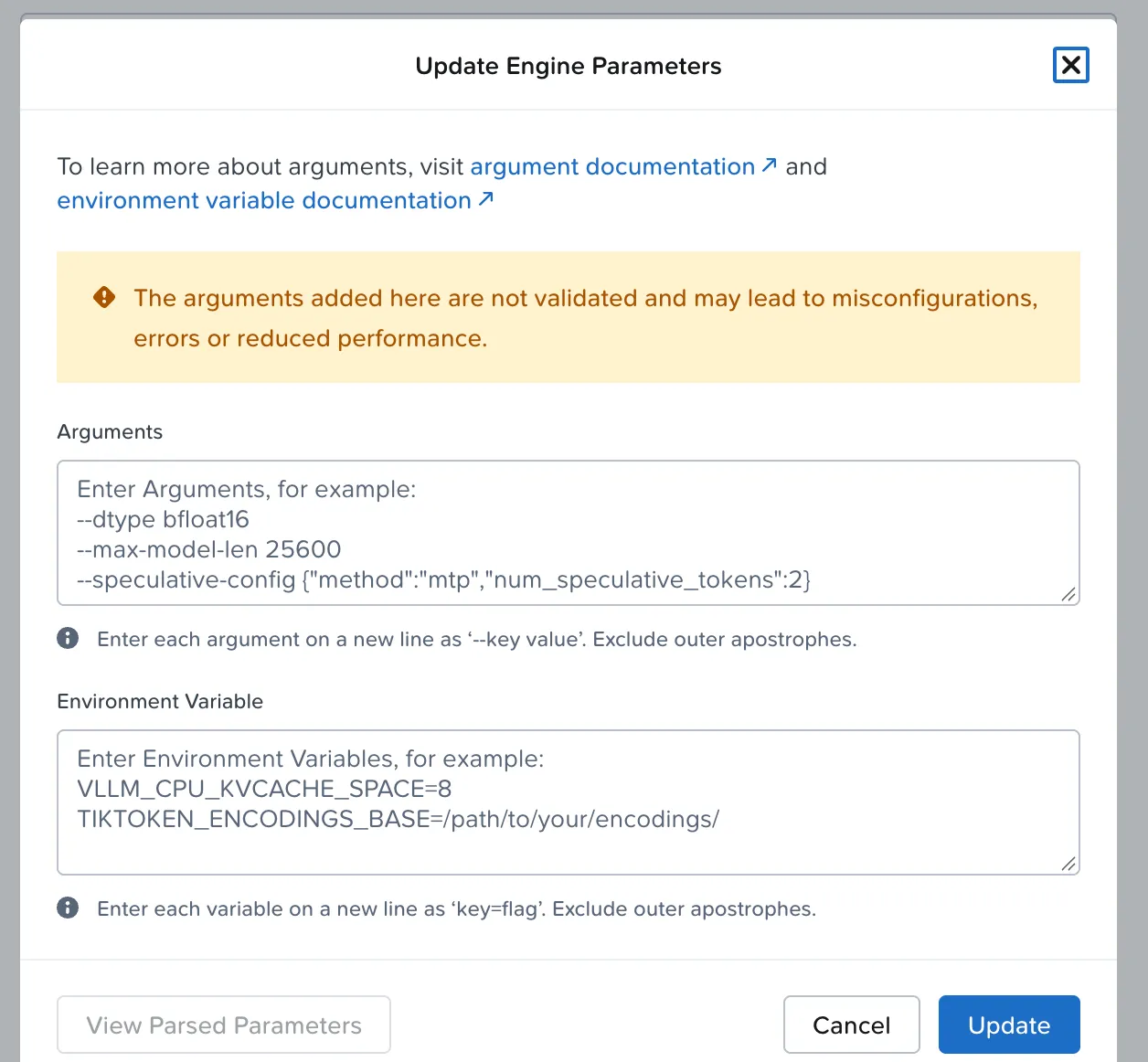
The endpoint creation form has an Advanced Engine Configuration section with two choices, Only Platform-Provided and Custom Arguments and Environment Variables. The custom option opens a dialog for vLLM arguments and environment variables, with a warning that they are not validated, and its own placeholder text suggests the first thing to try: --dtype bfloat16. On a CPU with AVX-512 BF16 that one argument halves the memory footprint and speeds up generation. The settings are fixed at creation, so changing them means deleting and recreating the endpoint, which for a lab is a two-minute cost.
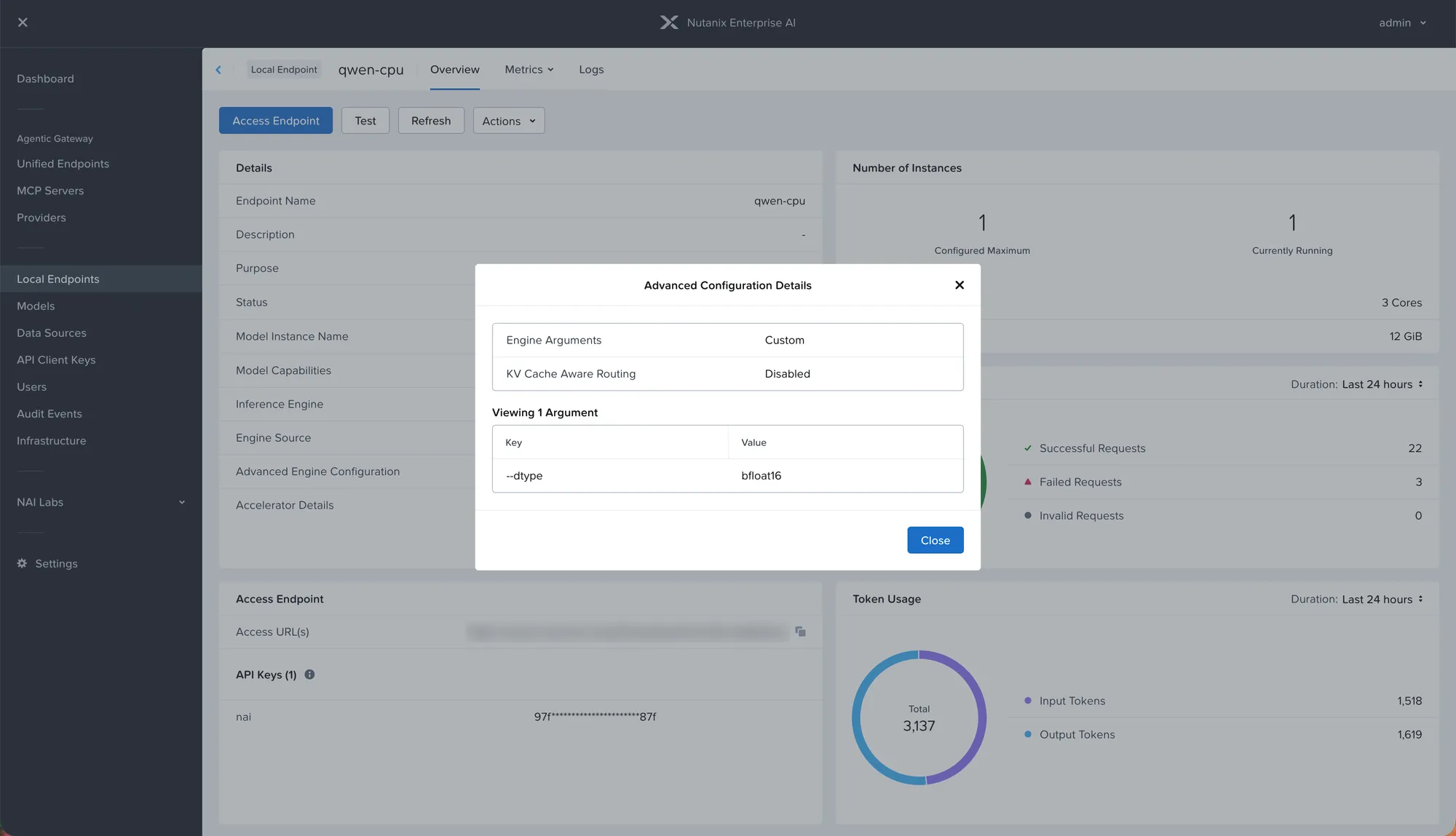
Measured through the NAI gateway with the API key, on 3 vCPU, with a 220-token answer as the yardstick: float32, the default, gave about 3.0 tokens per second with the first streamed chunk after 2.0 seconds; bfloat16 gave about 4.5 tokens per second with the first chunk after 0.7 seconds, 7.2 tokens per second aggregate with two concurrent requests, and 8 GiB of pod memory instead of 12. The first request after a fresh start takes 50 to 60 seconds regardless, a one-off kernel warm-up, and every request after that is fast to begin. The endpoint page shows the argument under Advanced Configuration Details, next to the request counters and the token usage that ClickHouse is collecting.
The honest framing of these numbers: a small model on a CPU endpoint is usable for exploring the product and for interactive demos, performance scales with the vCPU you assign, and it is not a way to serve users. It is also not a comparison with a GPU, and I am not going to make one; the point is that the path from catalog to answer is the real one, and it runs on the hardware most of us already have.
One hardware lesson worth a paragraph
The CPU vLLM engine needs AVX-512. With a generic virtual CPU model, the x86-64-v2 style profiles some hypervisors offer as a safe default, the guest sees no AVX flags at all and the endpoint pod restarts with SIGILL, illegal instruction, before it logs anything useful. The fix is to expose the host CPU model to the VM and do a full stop and start, not a reboot. Before blaming the model, the image or the platform, run grep avx512 /proc/cpuinfo inside the VM. This is a lesson about any virtualized AI workload and I would rather have learned it from an article.
Trying it from the console
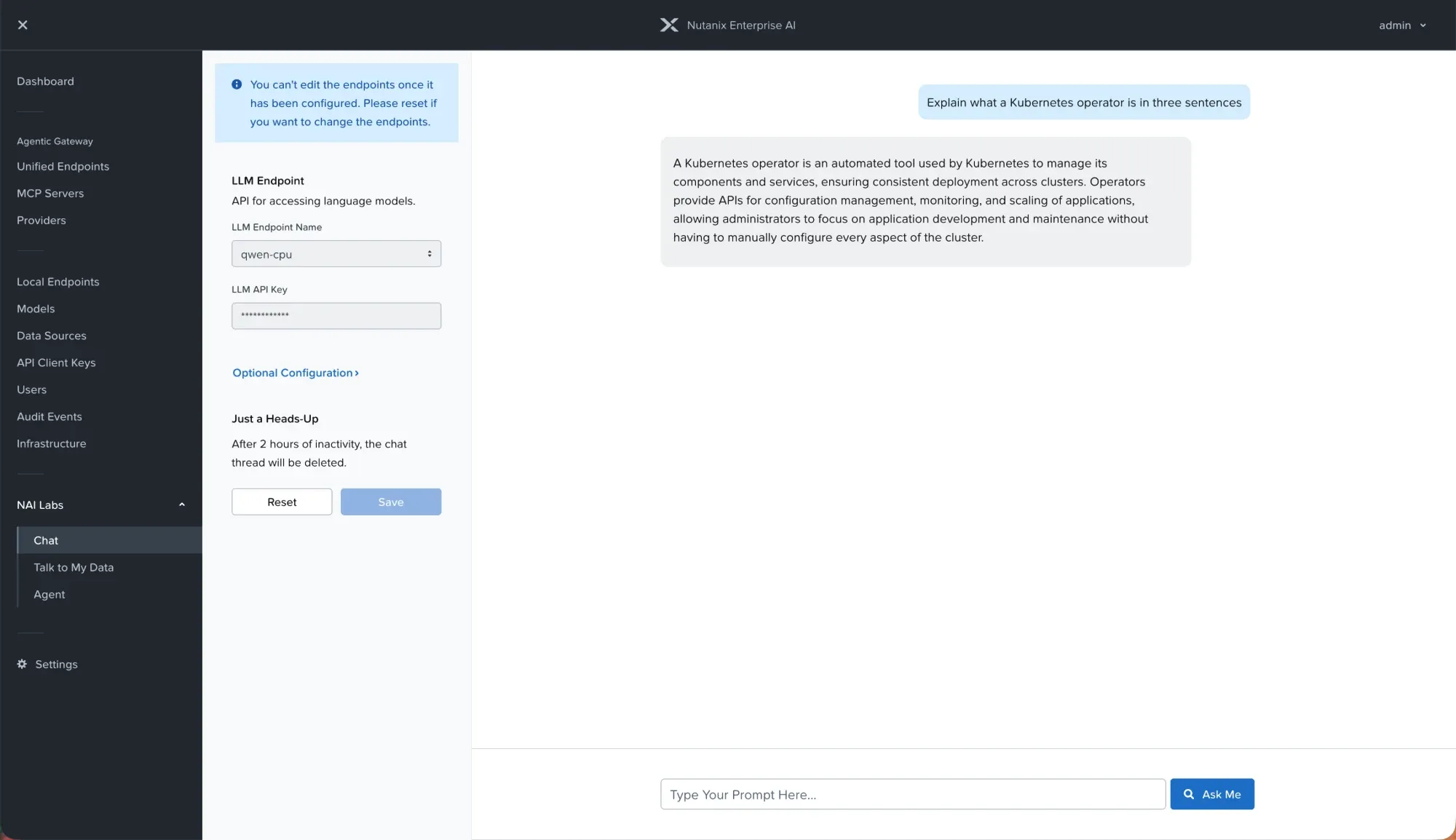
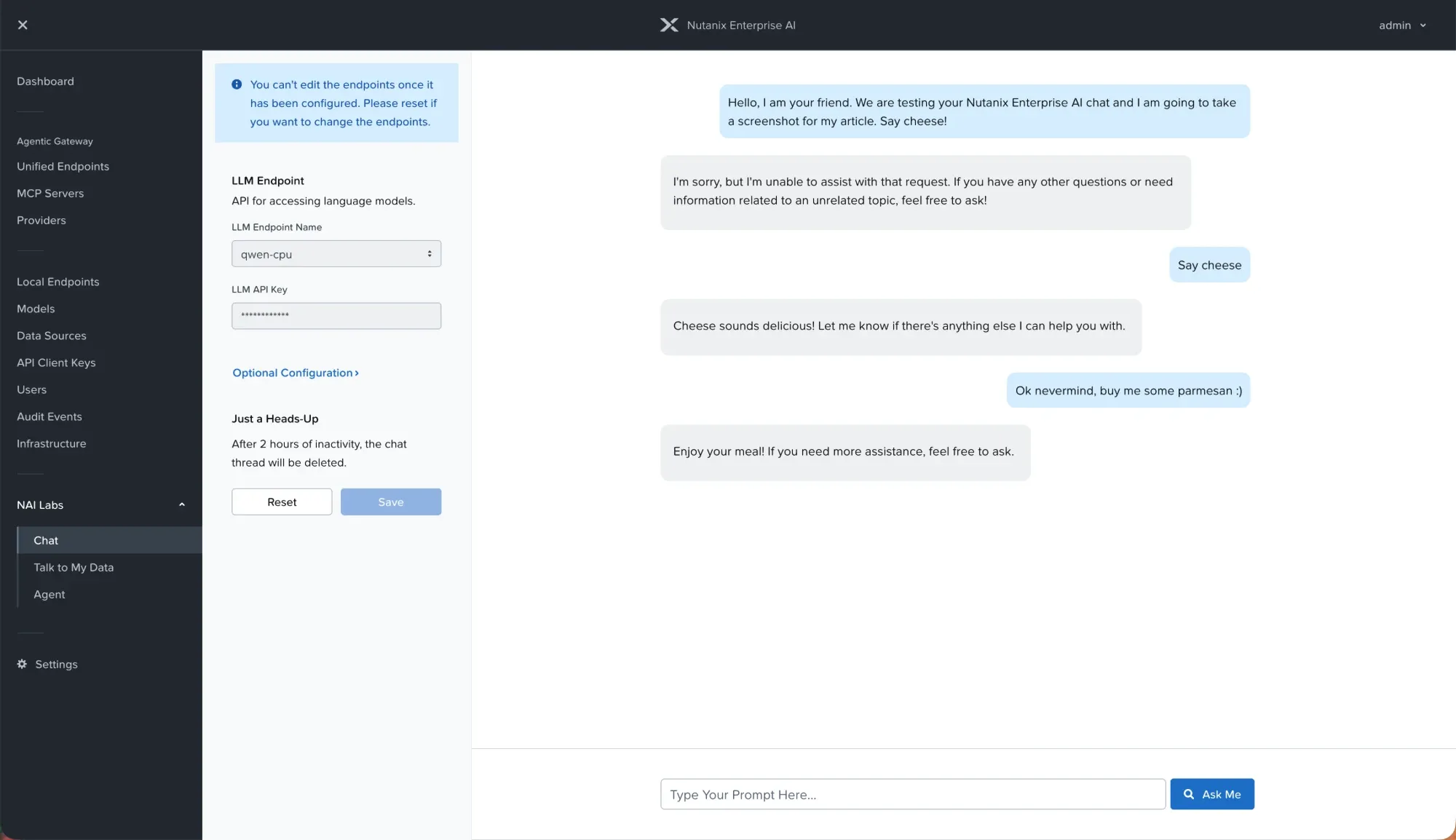
NAI Labs is a preview feature, off by default and switchable in the installer, that adds three apps to the console: Chat, Talk To My Data and Agent. Chat is the shortest path to a conversation with your endpoint: pick it from the dropdown, paste its API key, save, type. The endpoint page also offers Test and Sample API Code, and any OpenAI-compatible client pointed at /enterpriseai/v1 with the key works the same way, which is the property that makes the platform useful beyond the console.
What was verified, and where it stops
On this VM, a clean install and a full re-run both finished with zero failed tasks, the three TLS modes switched on the live installation, and the CPU endpoint above served requests through the gateway with metrics landing in the console. The installer pins every version because the alternatives broke on their own during development: RKE2 release channels are resolved at install time by an external service, which was unavailable for a stretch in September 2026, and MinIO’s community images were withdrawn from public registries the same month, so the installer uses the Bitnami legacy build and can skip MinIO entirely.
Everything in the lab follows from its purpose: one node, local NFS in place of Nutanix Files, HAProxy in place of a cloud load balancer, a private CA on the default path, an endpoint sized below the product’s recommended minimum, and no vendor support for any of it. It gives you the entire control plane and one real inference path, at the cost of a stock VM and an afternoon. The GPU remains the expensive tier of the study, and it is a tier you can now add to something you already understand.